● Free to start · Pro for unlimited

IndiaMART listings,
written by AI in seconds.

Auto AI is two tools in one: an Android app that keeps your daily tasks and files organised, and a Chrome extension that fills the IndiaMART Seller Panel for you — AI title, description, specifications, images, price, MOQ — then saves and moves to the next product.
  • ✓
    About half a second per listing — measured on live runs
  • ✓
    Bulk mode — paste 500 product names, get 500 listings
  • ✓
    Live progress — percentage, counts, speed and time left
  • ✓
    Sign in with Google or email — your data follows you
Android 6.0+ Chrome 116+ English + Hinglish Works offline (guest)
Auto AI app
Auto AI · Android app
What it does

Everything a seller needs, in one place

Give Auto AI a product name — it produces a complete, IndiaMART-ready listing and types it into your seller panel. The same app keeps your day organised.

📝

Task manager

Add tasks with category, priority, due date and status. Filter by Today, Overdue or Completed. See pending, completed and overdue counts live.

📁

Catalogue sheets

Upload .xlsx, .xls, .csv or .tsv. Every row becomes a product. Keep a copy on the phone and — when signed in — a copy in the cloud.

✨

AI listing writer

Keyword-rich title, a 650–950 character description, 12–18 specifications and 10–15 search keywords. Bulk mode does a whole catalogue.

📊

Live progress

Percentage, animated bar, the product being processed right now, listings done, needs-review, failed, speed per minute and time left.

🧩

Chrome extension

Fills the IndiaMART Add Product form — including the dynamic specification (ISQ) questions — uploads images at 1000×1000 and saves each listing.

⚡

Fast by design

Every AI model has its own free quota, so Auto AI rotates across several of them at once. That is where the speed comes from.

🔔

Notifications

Get told when a run finishes or a task is due, without opening the app.

🎟️

Redeem codes

Single-use codes unlock Pro instantly. Enter one, or receive it after your purchase — no waiting for a manual setup.

🌐

English + Hinglish

Switch the whole app between English and Hinglish in one tap.

Get started

Download & install in two minutes

Install the app on your phone and load the extension in Chrome on the computer where you use the IndiaMART seller panel.

📱

Android app

Auto AI · Android 6.0 and newer

Tasks, files, AI listing writer, notifications and your plan — all on your phone.

⬇ Download the app

Chrome shows a warning for direct downloads — choose Keep. Then allow “Install unknown apps” when the phone asks.

🧩

Chrome extension

Auto AI · Chrome 116 and newer

Automates the IndiaMART Seller Panel: AI text, specifications, images, price and save — product after product.

⬇ Download the extension

Unzip it, then open chrome://extensions, turn on Developer mode and click Load unpacked.

Good news: the AI is already set up inside the app. You do not need to create or paste any key — open the app and start generating listings.
Pricing

Simple plans, cheaper than the rest

Comparable tools sell for roughly Rs 1,600 a month. Auto AI is deliberately priced below that — and the free plan never expires.

MOST POPULAR

Pro Yearly

For active sellers
Rs 2,999per year
Rs 4,788 at the monthly price
Save Rs 1,789 · 81% below world rate
  • ✓ Unlimited AI product listings
  • ✓ Bulk generate — whole catalogue at once
  • ✓ Priority fast AI engine
  • ✓ All specification (ISQ) answers
  • ✓ Cloud sync + data export
  • ✓ Chrome extension included
  • ✓ Priority support
BEST VALUE

Lifetime Unlimited

Pay once. Never again.
Rs 4,999one time
No renewal, no subscription
90% below world rate
  • ✓ Unlimited listings forever
  • ✓ All future features included
  • ✓ Bulk generate, priority engine
  • ✓ Cloud sync + exports
  • ✓ Support for life

Pro Monthly

Try Pro without commitment
Rs 399per month
Rs 1,600 / month elsewhere
75% below world rate
  • ✓ Unlimited AI product listings
  • ✓ Bulk generate
  • ✓ Priority fast AI engine
  • ✓ All specification (ISQ) answers
  • ✓ Cloud sync + data export
  • ✓ Email support
World-rate reference: Rs 1,600 / month for tools in this class. Auto AI Pro Monthly is Rs 399.

Free plan — included forever

Every new install starts here. No card, no trial timer, no expiry.

  • ✓ 10 AI product listings
  • ✓ Full task manager
  • ✓ Sheet upload (.xlsx, .xls, .csv, .tsv)
  • ✓ Cloud sync with your account
  • ✓ Chrome extension
  • ✓ English + Hinglish
Rs 0
forever
Start free

Upgrade any time from inside the app.

Have a redeem code?

Every code works once. Paste yours below to unlock your plan instantly.

Codes are created by the Auto AI team. Code ki spelling dhyan se check karo — har code sirf ek baar chalta hai.

Account

Sign in once — we remember you

Your session is saved in this browser, so you stay signed in next time. The same account works in the Auto AI Android app.

Sign in to Auto AI

Open the secure sign-in page to continue with Google or your email. Your session is remembered on this device, and the same account works in the Android app.

Continue to sign in Continue with Google Create a new account
Tip: install the Auto AI app and sign in there too — your plan and settings stay in sync.

Why sign in?

✓
Your plan follows you.
Buy or redeem once — it is active everywhere you sign in.
✓
Tasks and files sync.
Phone, laptop and tablet all see the same lists.
✓
Nothing to re-enter.
We keep you signed in on this device until you sign out.
✓
Privacy first.
Tasks and files stay in your own account. We do not sell data.
Full guide

How to use Auto AI — A to Z

Follow this once and you will know everything. Nothing is hidden.

1 · The Android app

Sign in
  1. Open Auto AIYou will see three short slides, then “Get started”.
  2. Continue with GoogleOne tap. Your name and photo come in automatically.
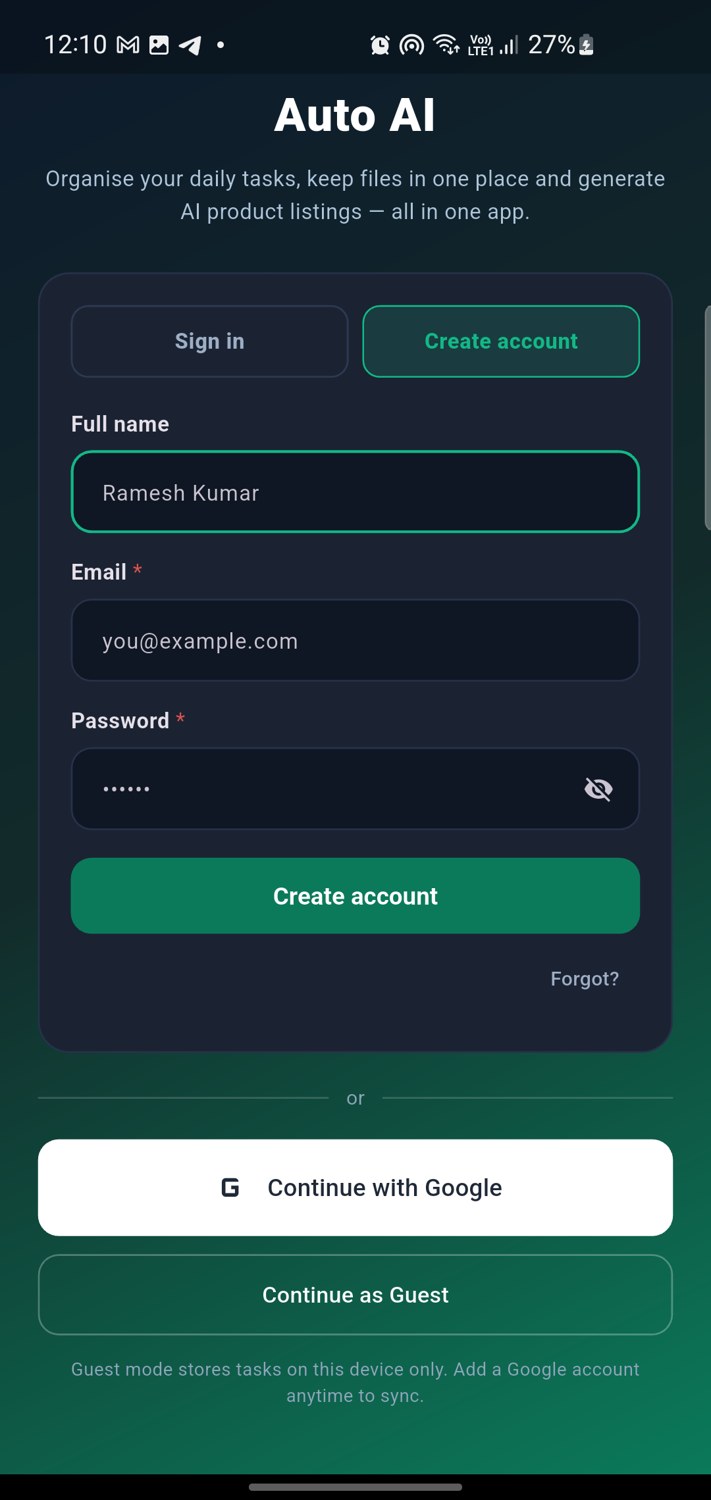
  3. Or use email“Create account” tab → name, email, password → Create account. Existing account? Use “Sign in”. Forgot your password? Tap “Forgot password?”.
  4. Or continue as guestWorks without an account; data stays on the phone. You can add Google later.
Tasks
  1. Tap + Add TaskThe green button at the bottom right.
  2. Write the titleFor example “Send the quotation to Ramesh”.
  3. Pick a categorySales, Follow-up, Purchase, Dispatch, Payment — or type your own.
  4. Set priority and statusLow, Medium, High, Urgent. Status: Pending, In progress, Completed.
  5. Set a due dateDate first, then time. Remove it with the ✕ if you do not need one.
  6. Attach a sheet“Attach file” → .xlsx, .xls, .csv or .tsv. It stays linked to the task.
  7. SaveTap Save at the top right. Tick the circle to complete a task in one tap.
  8. Filter, sort, searchUse the chips (All / Today / Overdue / Completed), the search icon and the tune icon to sort by due date, priority, newest or A–Z.
Files — the catalogue
  1. Open the Files tabThe folder icon in the bottom bar.
  2. Tap the upload iconTop right. Pick your Excel sheet (.xlsx or .xls) or a CSV. Multiple files at once is fine.
  3. Products are read automaticallyThe sheet is parsed on the spot — every row becomes a product. You get a message like “12 product(s) ready”.
  4. Nothing else to pressYour catalogue is sent to the cloud by itself and the Chrome extension picks it up on its own. No “Sync” button anywhere.
  5. Column names are flexible“Product Name”, “Item”, “Title” or “Naam” all work. If the sheet has no name column, the first real column is used, so any sheet works.
  6. “Re-read sheets”Only needed for files uploaded before. It reads them again and tells you the exact reason if something cannot be read.
AI listings
  1. Open AI ToolsThe sparkle icon in the bottom bar.
  2. Tap New productType the product name (required). Add category, price, unit, MOQ, brand and extra specs if you know them.
  3. Tap Generate listingIn a couple of seconds you get the title, description, specifications and keywords.
  4. Copy or exportEach block has its own Copy button. Use “Copy everything” or “Export CSV” at the bottom.
  5. Bulk generateOne product per line, then Generate. Watch the progress card — percentage, counts and time left.
  6. Saved productsEvery listing stays in “Saved products”. Reopen, edit or copy again any time.

2 · The Chrome extension

Install
  1. Download and unzipGet AutoAI-extension.zip from the Download section and unzip it.
  2. Open chrome://extensionsPaste that address in the URL bar.
  3. Turn on Developer modeThe switch at the top right.
  4. Click Load unpackedSelect the unzipped folder.
  5. Pin itClick the puzzle-piece icon and pin Auto AI to the toolbar.
Link it (once)
  1. Open the extensionClick the Auto AI icon in the toolbar.
  2. In the app: Settings → Device keyCopy the key shown there.
  3. Paste it in the extensionPress Connect. That is the whole login — there is no second sign-in inside Chrome.
  4. Done foreverThe session is remembered. The key also carries your account, so it works even when the internet is down.
Pick what to list
  1. Products appear by themselvesThe moment the phone uploads a sheet, the list refreshes here. There is no Refresh button to press.
  2. Tick the ones you wantEvery product has a checkbox. Use Select all or Select none to move fast.
  3. Start is locked until you chooseThe ▶ Start button stays grey until at least one product is ticked, so you can never list the wrong thing by accident.
  4. See what is already doneA product that is listed gets a green Listed badge and a strike-through, and the counter reads like “12 · 3 done”.
  5. It remembers across restartsClose Chrome, reopen it — the same products stay marked as done and are not listed twice. You can still tick one manually if you want it again.
Run it
  1. Log in to IndiaMARTKeep a tab open on seller.indiamart.com, signed in.
  2. Press ▶ StartOnly your ticked products are listed, in order.
  3. Watch the cardThe extension shows the percentage, how many are listed, how many remain, speed and time left — live, no refresh.
  4. Stop and continue any timePress Stop, and Continue resumes at the exact product. Even after a browser restart.
  5. Export a reportDownload report gives you a CSV of everything that was filled.
Google Drive backup (optional)
  1. Press “Back up to Drive”Google asks permission once. It only sees the files Auto AI creates — never the rest of your Drive.
  2. Your catalogue is copiedA CSV lands in an Auto AI folder in your own Drive, so the data survives even if the phone is lost.
  3. Automatic from then onAfter the first time, every new upload is backed up silently. Nothing to press.
  4. “Drive files”See what is saved (date and size) and delete anything you no longer need.
What it fills in
FieldValue
Product NameAI title
DescriptionAI description
Price / Unit / MOQFrom your data
Specifications (ISQ)Material, Colour, Size, Type, Usage, Packaging, Country of Origin, Delivery, Payment, Warranty and any other question
ExtrasBrand, HSN, video link, keywords
ImagesAuto-resized to 1000×1000
Safe by design: anything you have already typed yourself is never overwritten, and obviously wrong values (like “N/A” or a non-numeric price) are skipped.
How it connects

One key links the app and Chrome

You never sign in twice. Sign in once in the phone app, then paste its device key into the Chrome extension. That is the whole setup.

1 · Get the key (phone app)

  1. Open the Auto AI appSign in with Google or your email.
  2. Settings → Device keyYou will see a device key, shown in groups of four.
  3. Tap “Copy key”It goes to your clipboard. The same screen shows whether Chrome is already linked.
Why a key and not another login? A key is faster to paste, works offline and can be replaced any time with the New button if you change phone.

2 · Paste it (Chrome extension)

  1. Open the Auto AI extensionClick the icon in Chrome. If it is not loaded yet, unpack the folder and load it once.
  2. Paste the keyDrop it into the “Paste your device key here” box. It formats itself as you type.
  3. Press ConnectThe header flips to Connected and your name appears.
  4. Upload products in the appThey show up in the extension within a second — no refresh.
  5. Press StartStart is enabled only when products exist. The extension fills your IndiaMART form and saves each listing.
Changed your mind? In the extension press Change key and paste a different one — the account switches instantly. Clear removes it completely.
▶

Start only when ready

The Start button stays disabled until products have been uploaded from the app. Nothing runs half-empty.

■

Stop and continue

Press Stop and the run pauses. The button becomes Continue and picks up from the exact product it left. Even after restarting Chrome.

✓

Completed

When every product is done the card shows Completed with 100% and how many were listed, reviewed or failed.

Shortcuts

Hotkeys — work without the mouse

While you are on the IndiaMART tab, the keyboard is enough.

ShortcutWhat it does
Alt + Shift + A Open the Auto AI control panel
Alt + Shift + S Start or stop a listing run instantly (works while the page has focus)
Alt + Shift + G Jump straight to the progress dashboard
⌘ + Shift + A Same as above on a Mac

Want different keys? Open chrome://extensions/shortcuts and set your own.

For resellers

Give it away, or sell Pro

There is no server bill, so giving the free plan away costs you nothing.

🎁

Free plan

10 AI listings and every feature. The customer uses their own free setup — you pay nothing per user.

💎

Pro plans

Monthly, yearly or lifetime. Unlimited listings. Sell keys or redeem codes.

🎟️

Redeem codes

Single-use codes unlock a plan instantly. Send one on WhatsApp and the customer is running in seconds.

How a sale flows: the customer picks a plan (in the app or on this site) → you generate a code → they paste it under Redeem code → unlimited listings unlock straight away. No waiting, no manual setup.
Help

FAQ

Do I need my own AI key?

No. The AI is already configured inside the app and the extension. Open the app and start generating — there is nothing to set up.

The extension is not filling anything

Make sure you are signed in to IndiaMART, open Manage Products → Add Product, then in the extension press Inject into current tab and start again. Keep that tab open while it runs.

Google sign-in did not work

Use email sign-in instead — it always works. If Google sign-in is important to you, contact support and we will enable it for your account.

Fields got filled but the listing was not saved

IndiaMART occasionally changes a button label, or shows a validation error. Open the seller tab, read the red error, save manually — then report it so the extension can be updated.

Images are not uploading

Use an Image URLs column in your CSV with direct public links, or attach local photos in the Products tab. Local photos are the most reliable.

How fast is it?

About half a second per listing on the AI side in our tests, plus the time IndiaMART takes to save each product. Start with 5–10 products to see the flow, then scale up.

Where is my data stored?

Tasks and files are on your device and in your own account. Listings you generate stay on your device. Nothing is sold or shared.

Can I use this on a laptop or tablet?

Yes. The extension runs in Chrome on Windows, macOS and Linux, and this site adapts to any screen. The Android app works on tablets as well as phones.

A redeem code is not working

Each code works only once. Check for typos (no spaces), and make sure it has not already been used. If it still fails, contact support with the code.

Is automating my own seller panel allowed?

It is your own account, so it is your responsibility. Use reasonable volumes, follow IndiaMART’s terms, and test with a small batch first.

Need help?

Talk to us directly

Buying a plan, a redeem code not working, or the extension stuck — message us and we will sort it out.

WhatsApp

Fastest way. Send your account ID with the message so we can find you instantly.

Message 7620476488
Where is my account ID? In the app: Profile → it is the 16-digit number, shown like 4729-6961-6981-8301.

Email

For anything longer, or if you need an invoice.

shushantshahare09@gmail.com
Support hours. We answer every message. If you write at night, expect a reply the next morning.